GCP Load Balancer with Cloud Armor
GCP Load balancer allows us to distribute incoming traffic globally across multiple backend instances, ensuring high availability and seamless scalability, on top of that we can also apply Cloud Armor to enforce security policies, such as Geo-blocking, Rate Limiting, and WAF rules, directly at the network edge before traffic reaches our backends
Load Balancer
Here we have 2 linux servers serving web on port 8080, the goal is to load balance these 2 so i can be accessed on port 80 in front of the load balancer
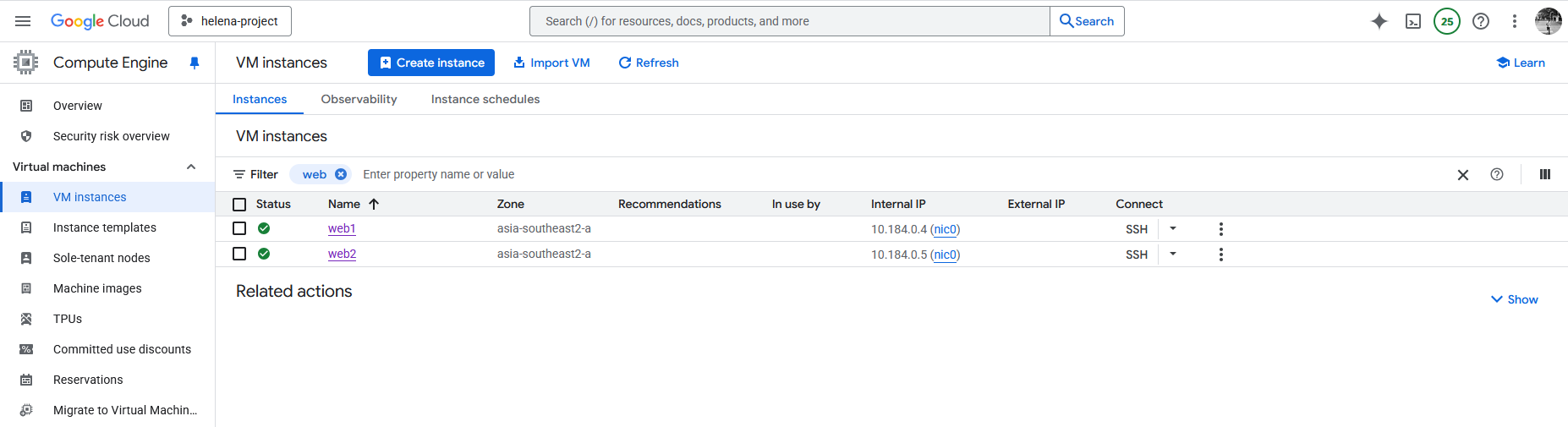
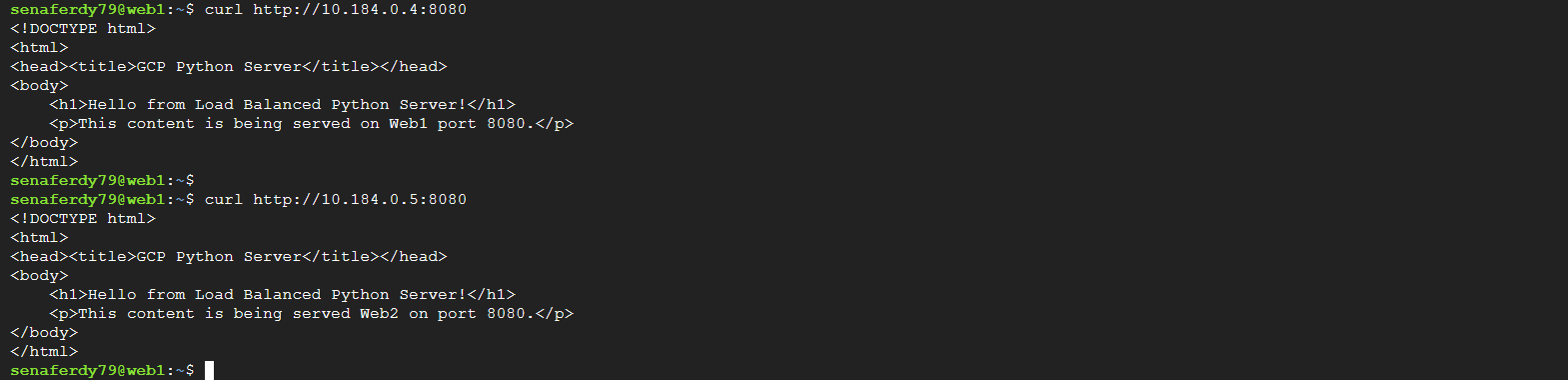
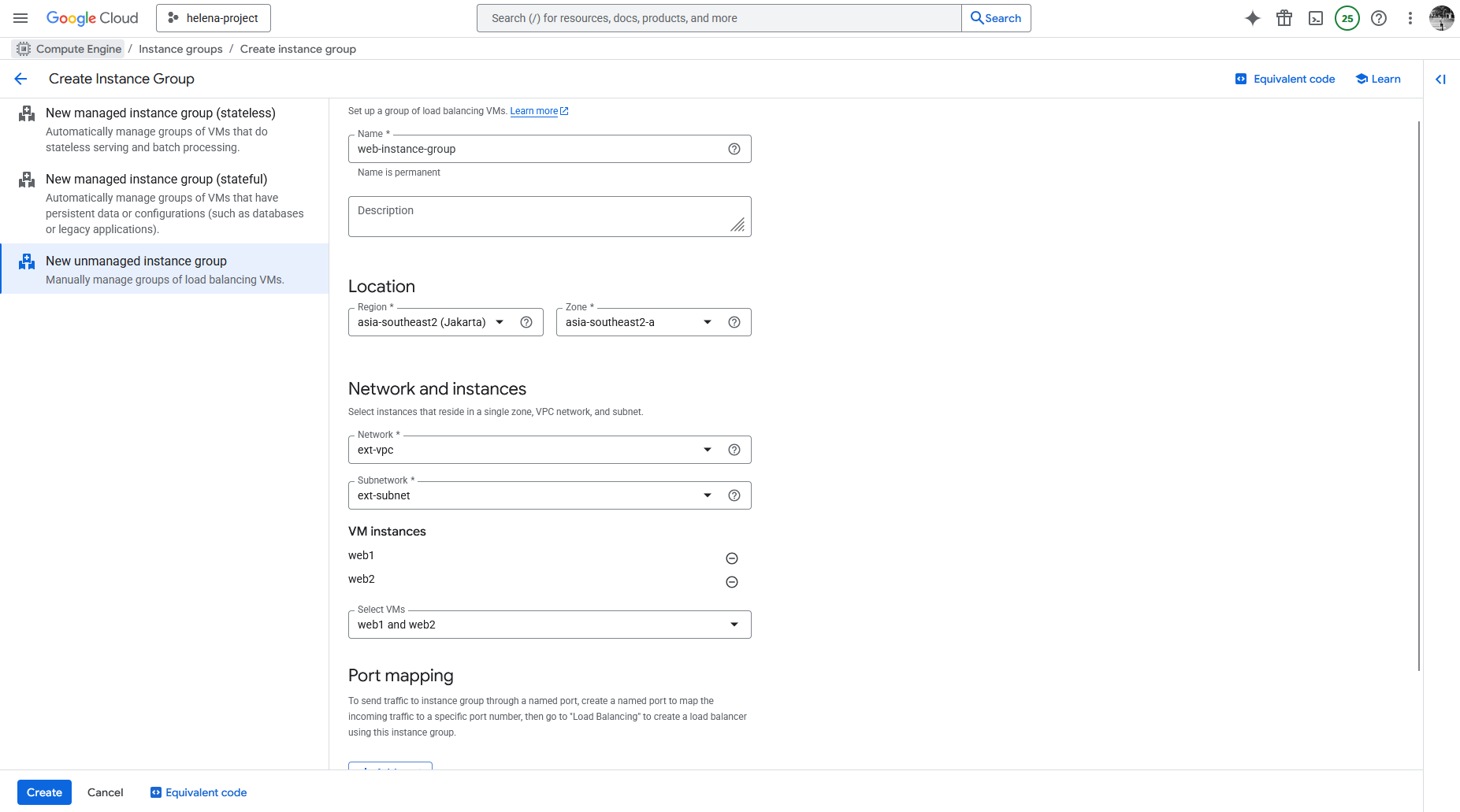
Next we create an Unmanaged Instance Group to contain these 2 linux servers
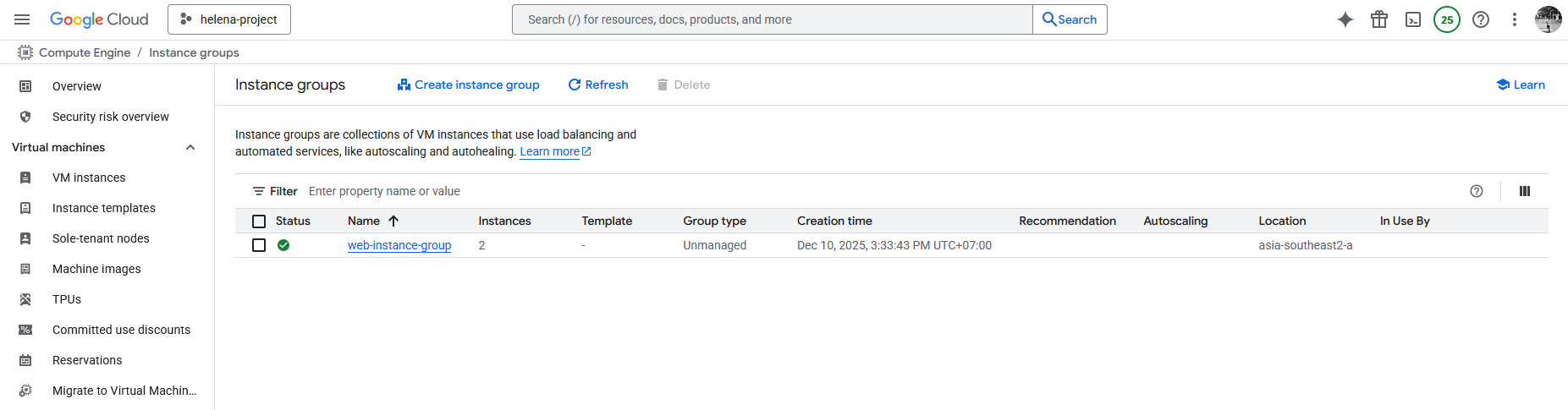
After that we create the Application Load Balancer
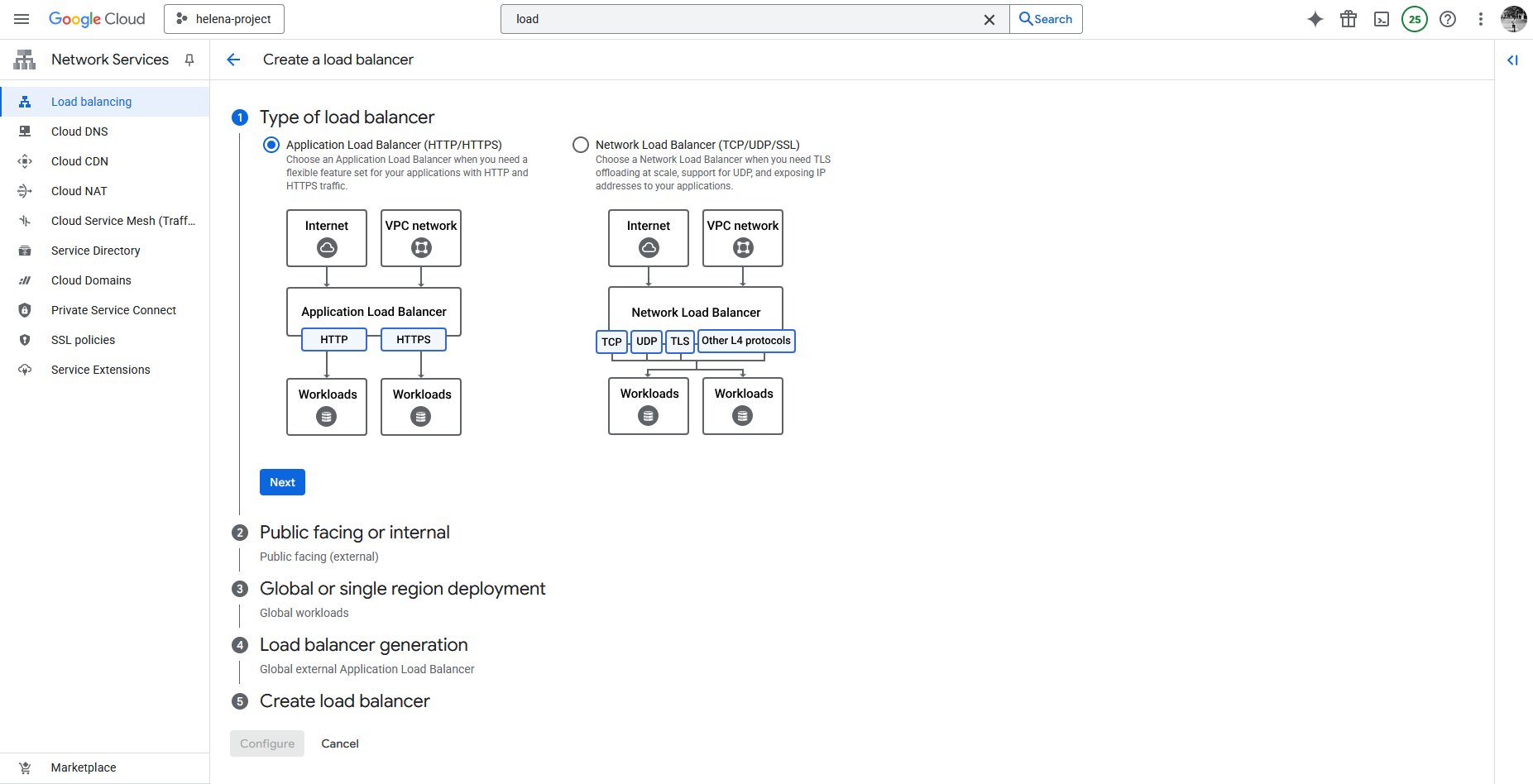
- Application Load Balancer (L7: HTTP/HTTPS): This is a full proxy that operates at the application layer. It understands the request’s content (URL, headers, cookies), enabling advanced routing logic and SSL termination. This type is mandatory for using Cloud Armor’s WAF features (like blocking SQLi or XSS) because it can inspect the HTTP payload.
- Network Load Balancer (L4: TCP/UDP/SSL): This operates at the transport layer and can be a passthrough or a proxy. It is simpler and faster, focusing on IP and port distribution. Best for high-speed, non-HTTP/S traffic (like gaming or VPN).
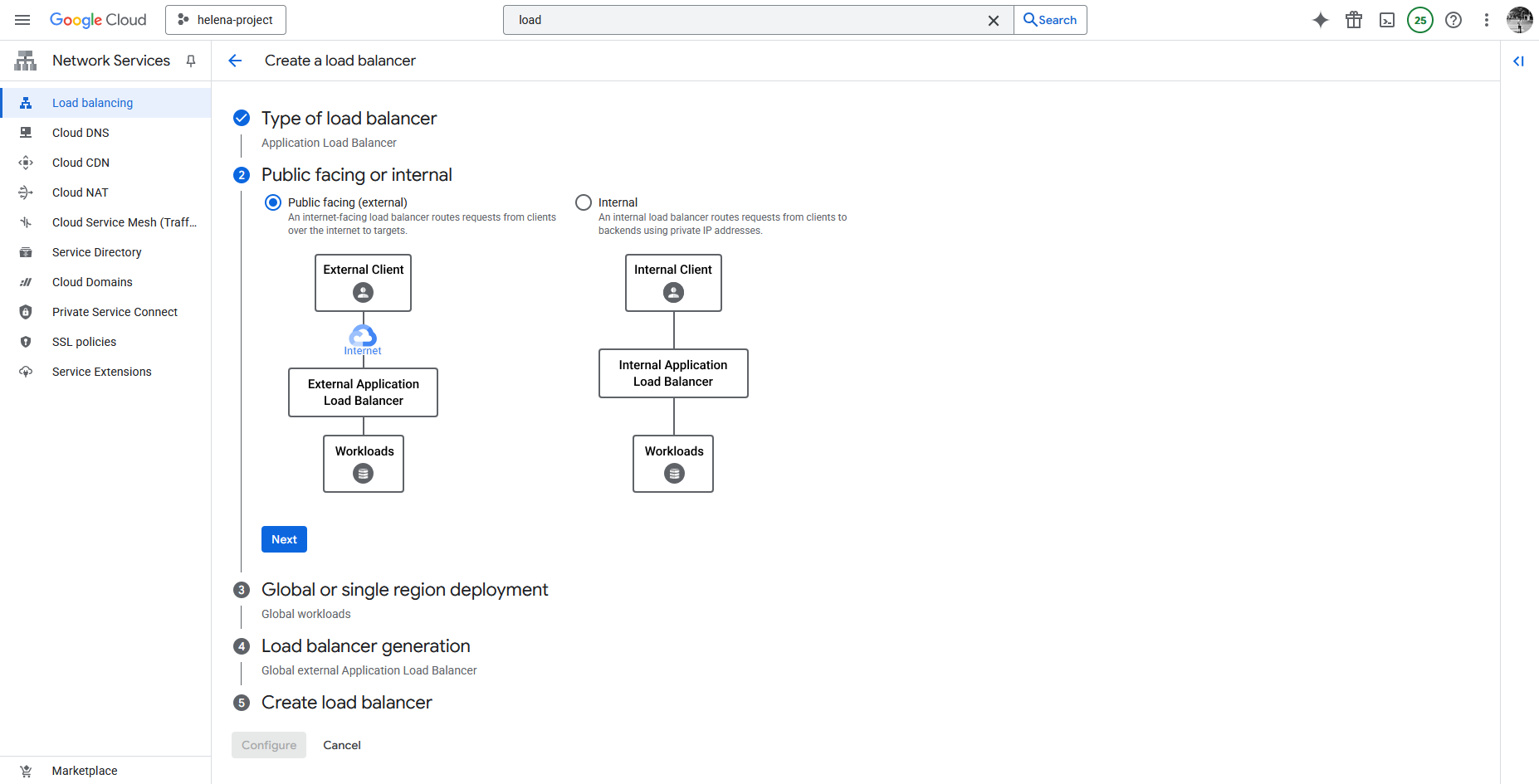
Then we select the External Load Balancer
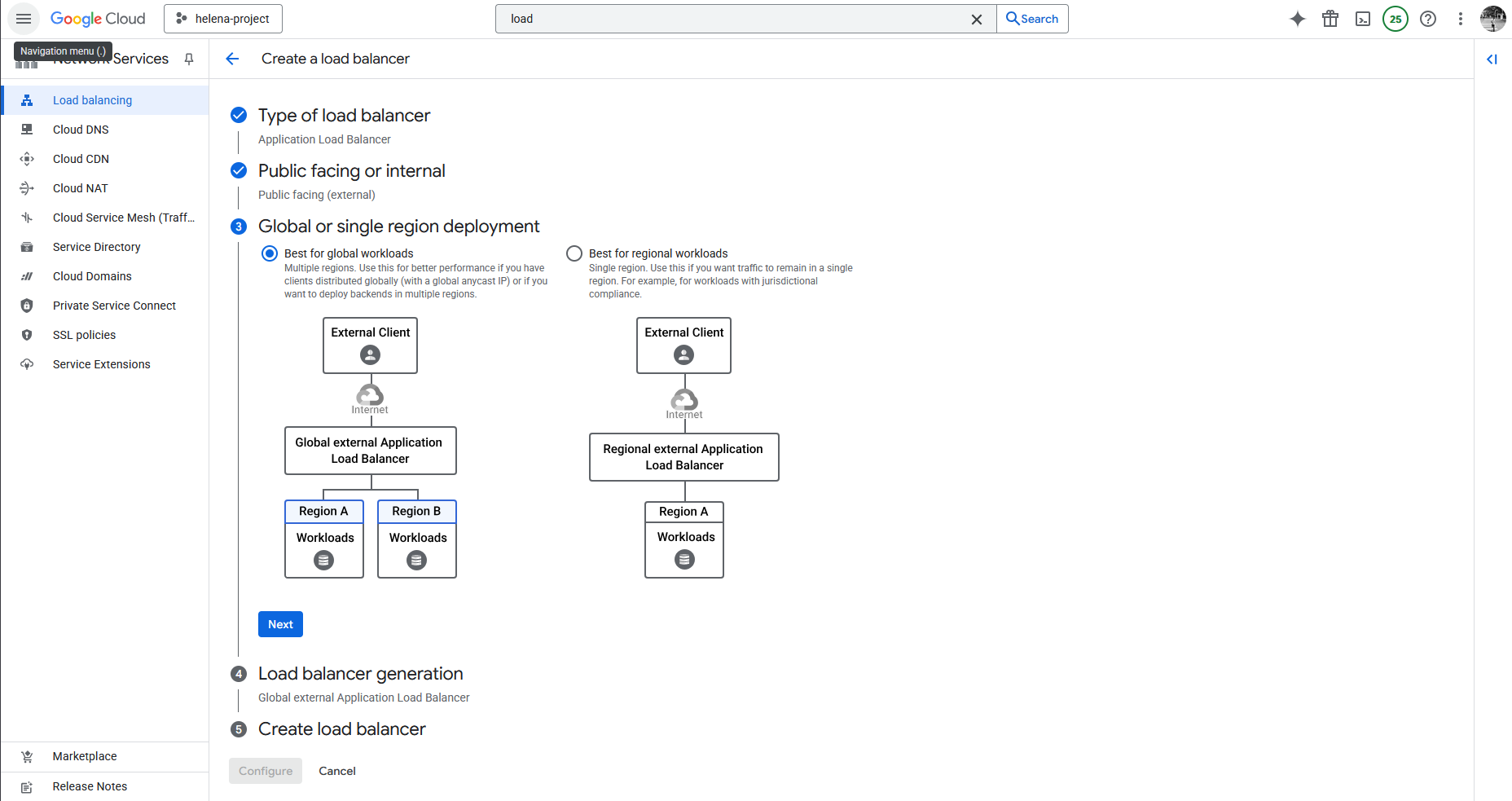
And here we select Global for simplicity
Next we select the Global External Application Load Balancer
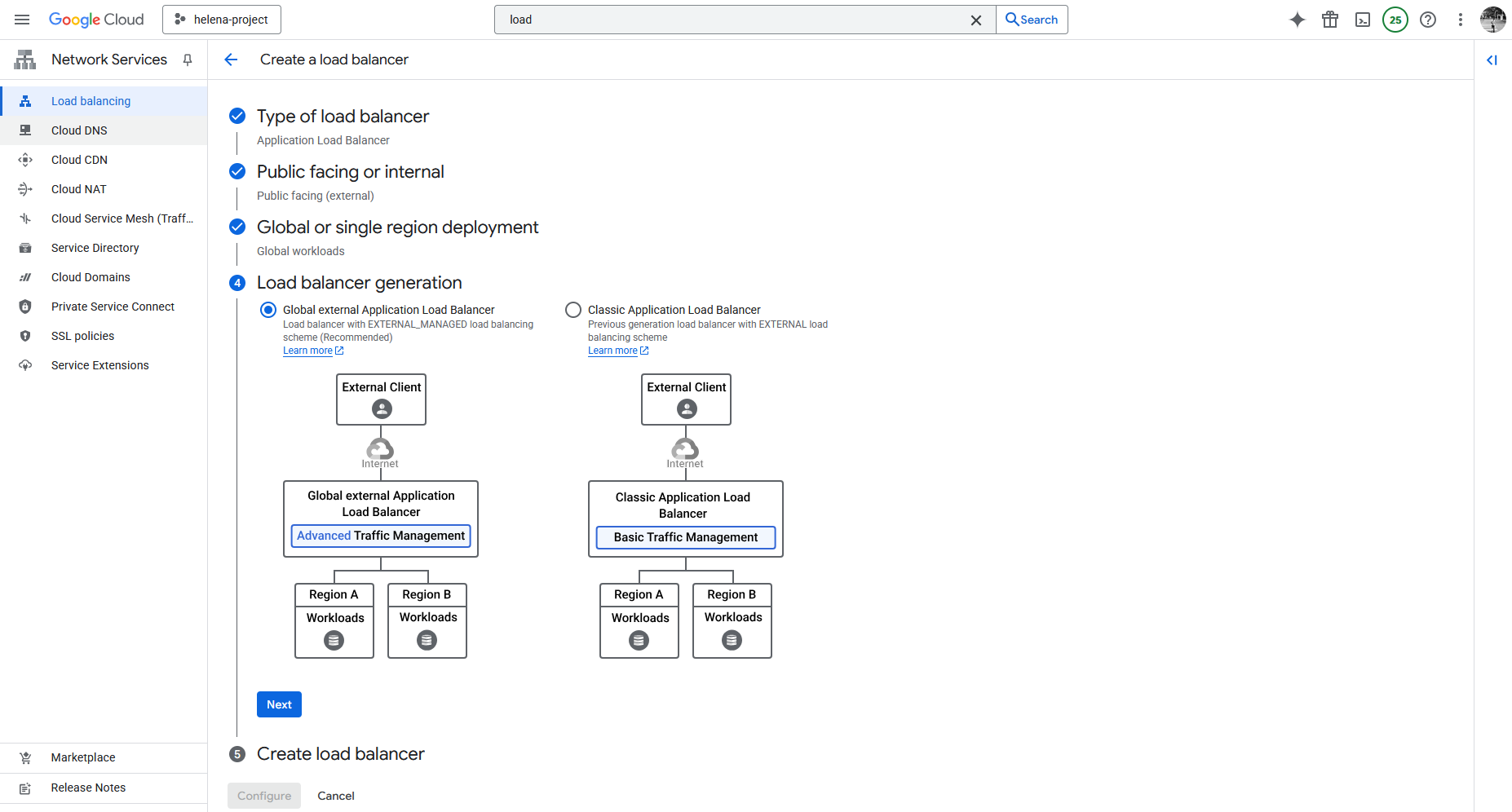
- Global External Application Load Balancer (New/Modern): This is the newer, recommended choice for global workloads. It utilizes the Envoy proxy technology and offers Advanced Traffic Management features, such as traffic splitting (weight-based) and request/response header transformations.
- Classic Application Load Balancer (Legacy): This is the previous generation of the global external Load Balancer. It only supports Basic Traffic Management.
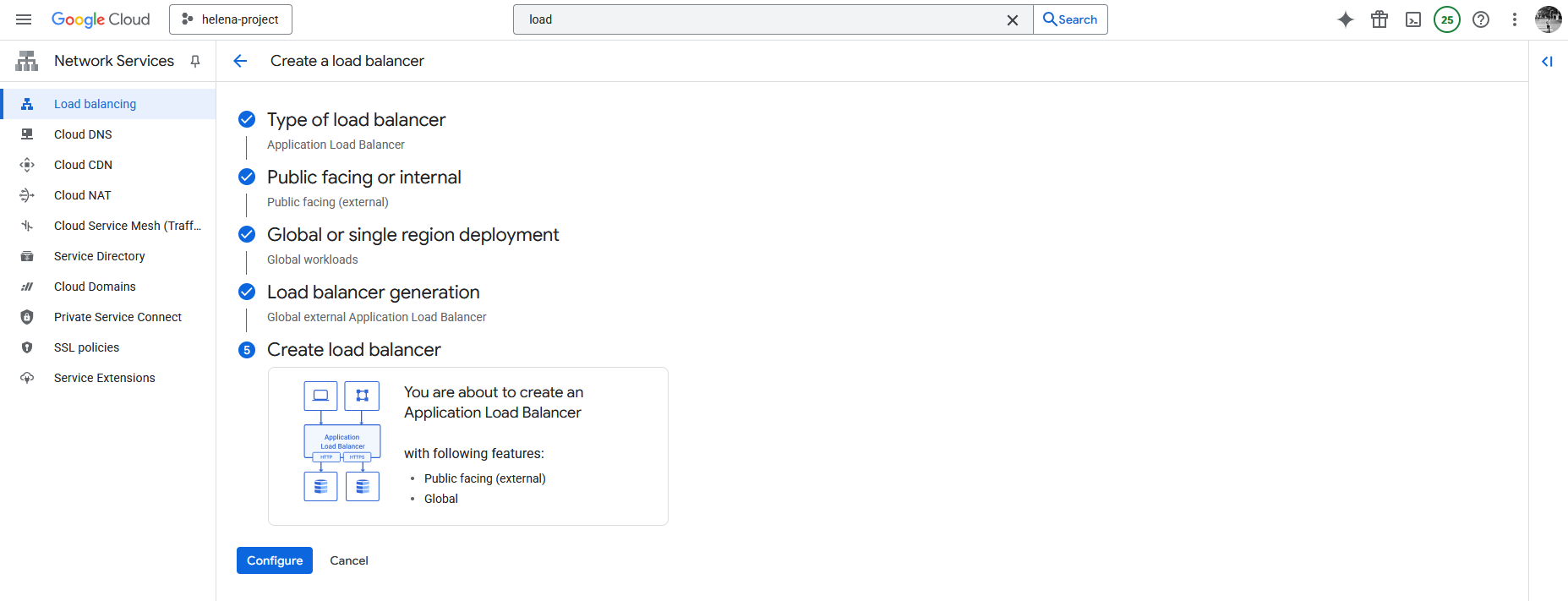
And then we can create the Load Balancer
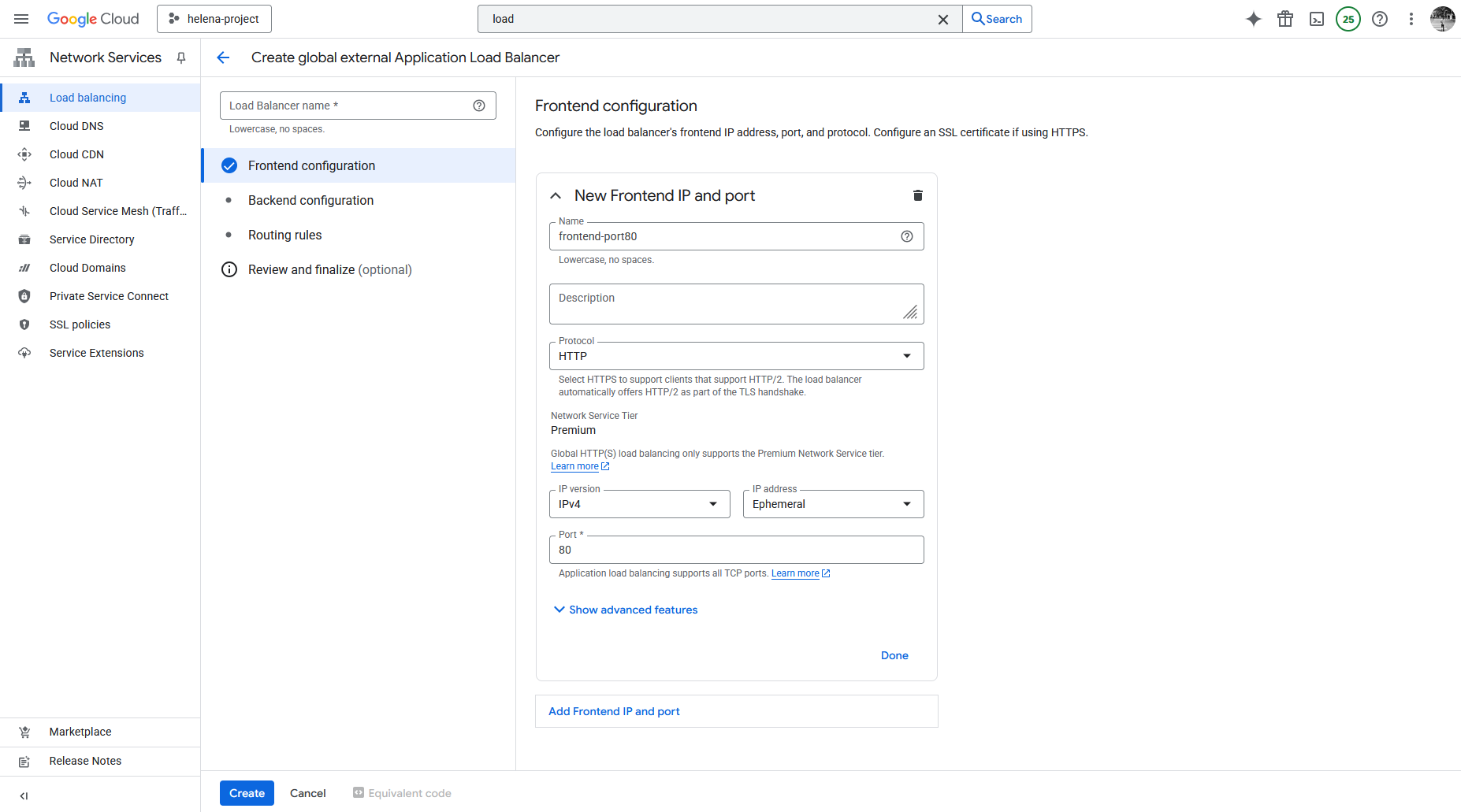
After that we need to configure the Frontend, give it name and set the front facing port and IP Address
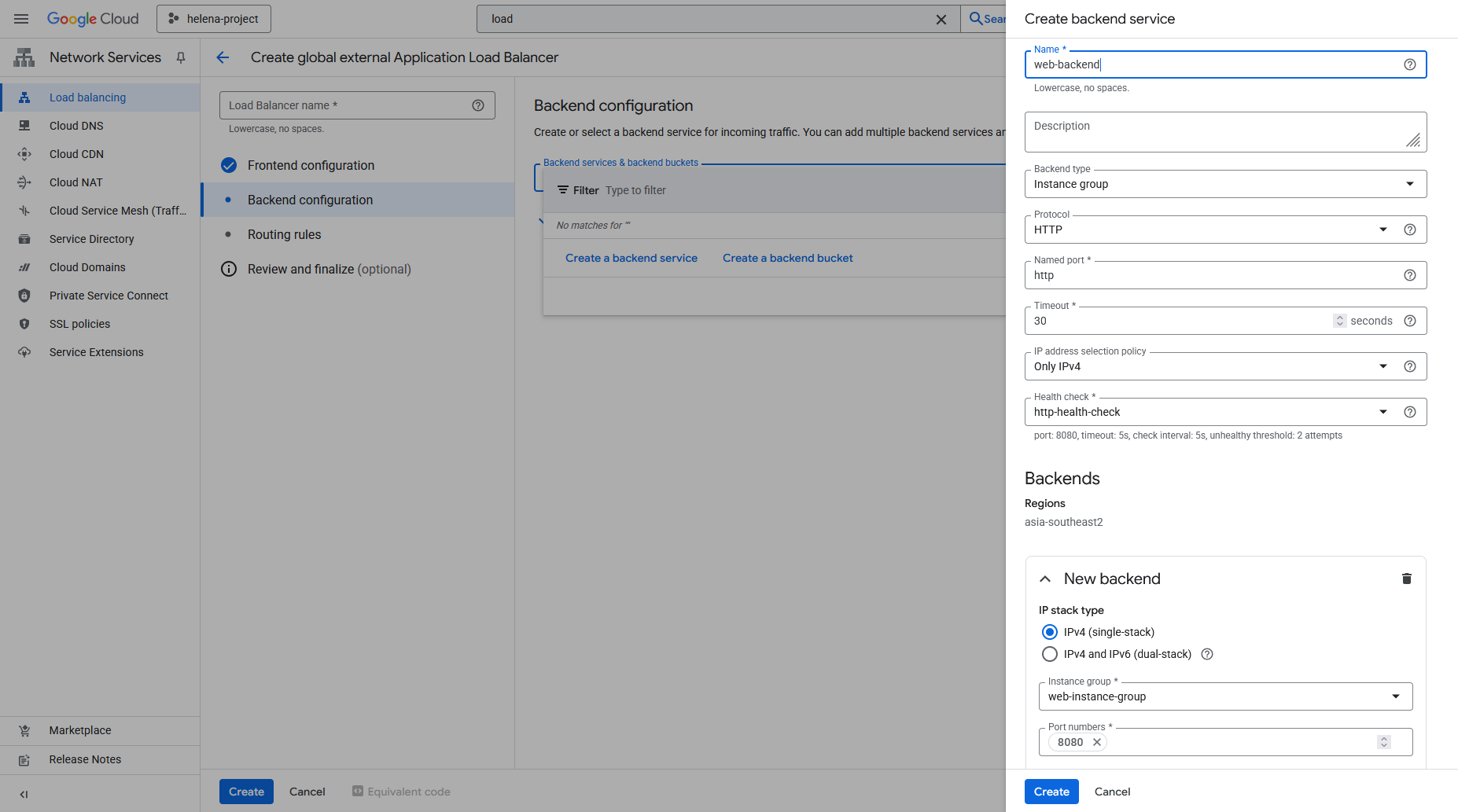
Next we configure the Backend, here we create a new Backend Service that points to the Instance Group we created earlier on port 8080. Here we also disable any Cloud Armor policy because we’ll configure it later.
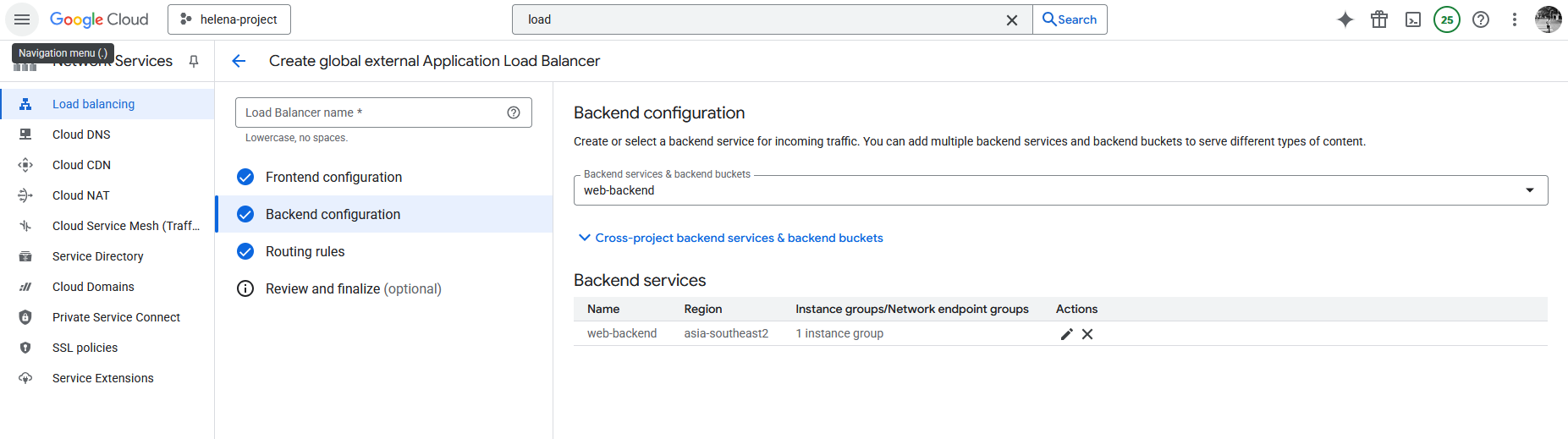
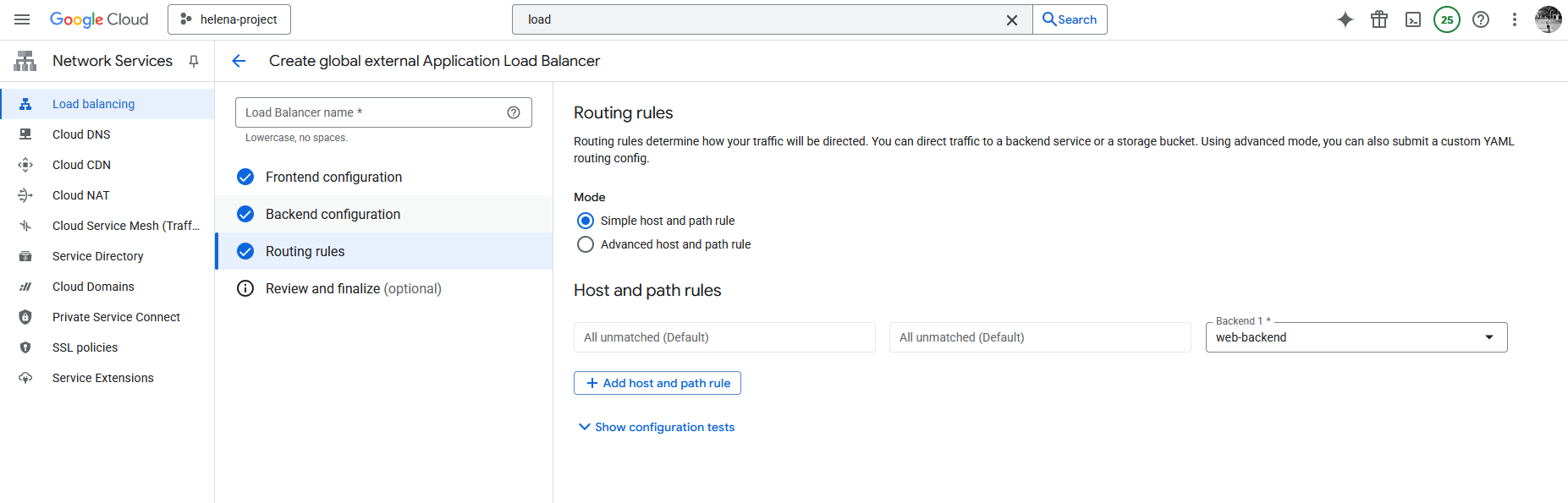
Then configure the Routing Rules, the default one should work fine
Review and finalize

After its created, now we have a working Application Load Balancer
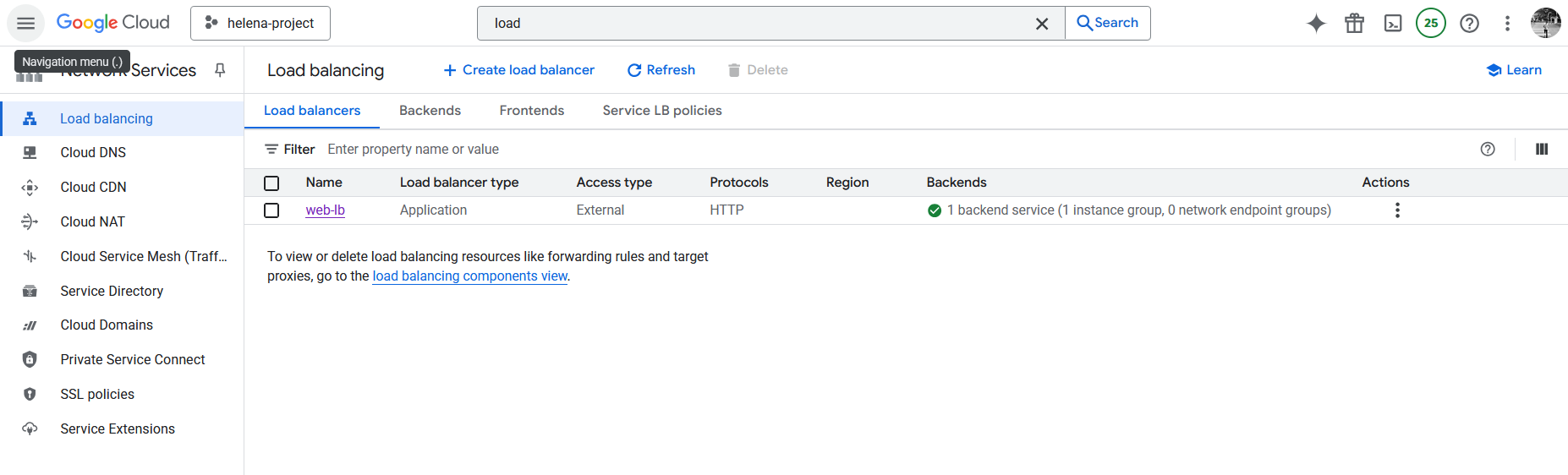
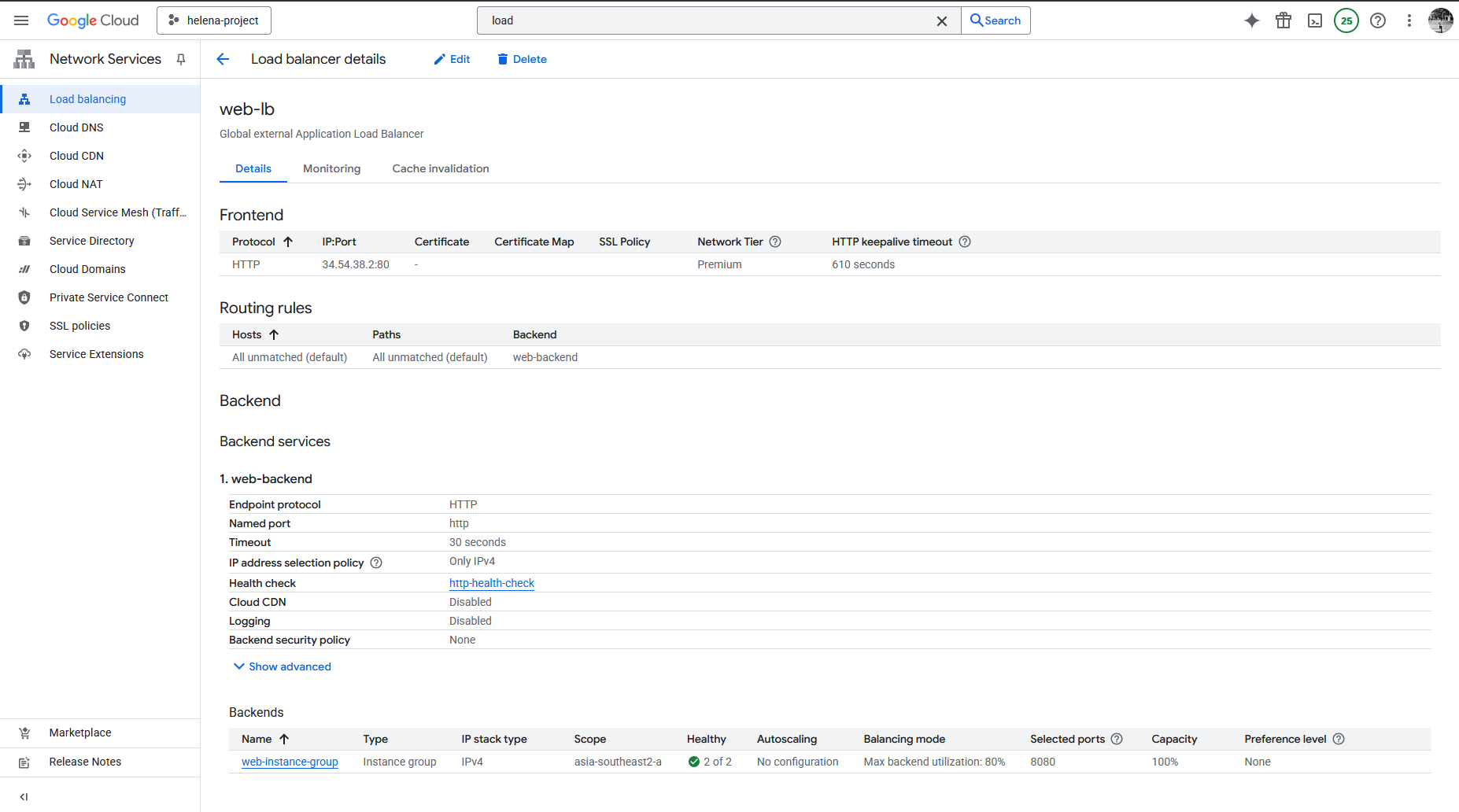
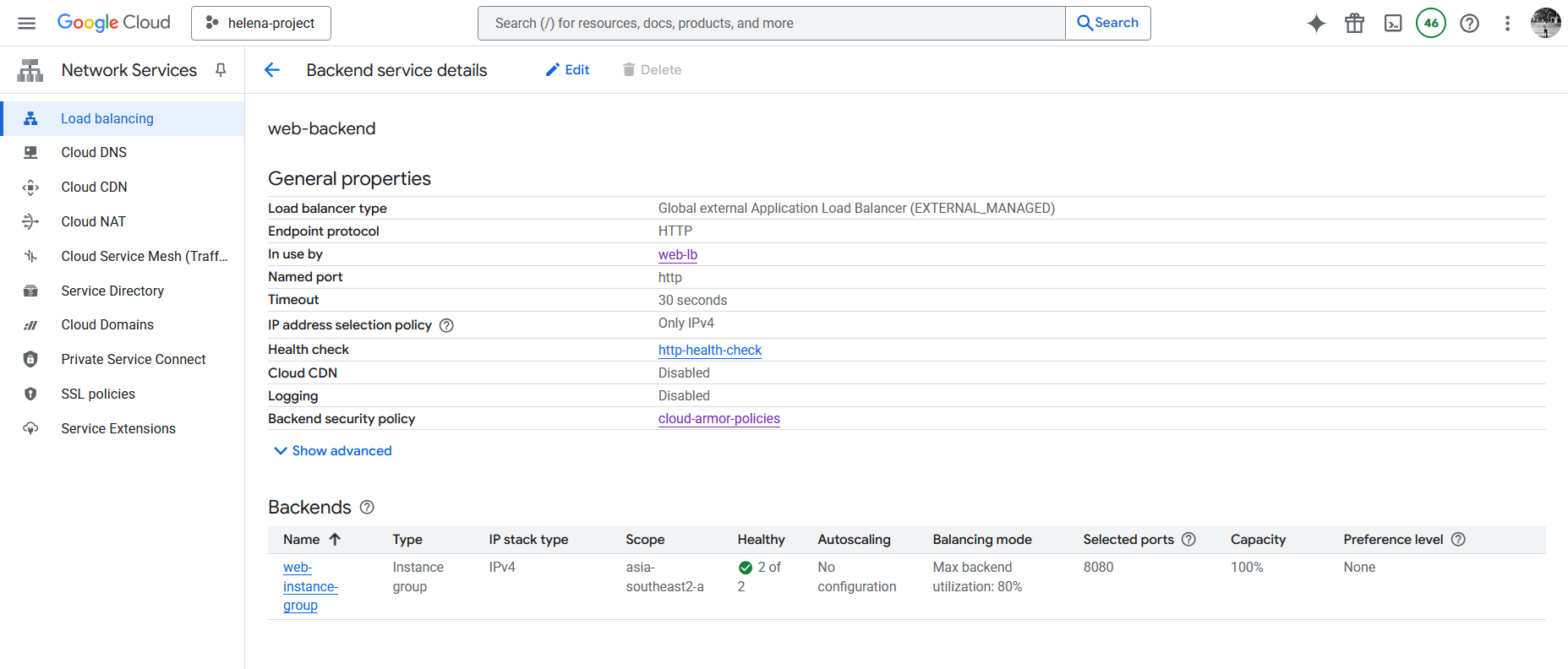
Here we can see the configured backends and the health status of its members

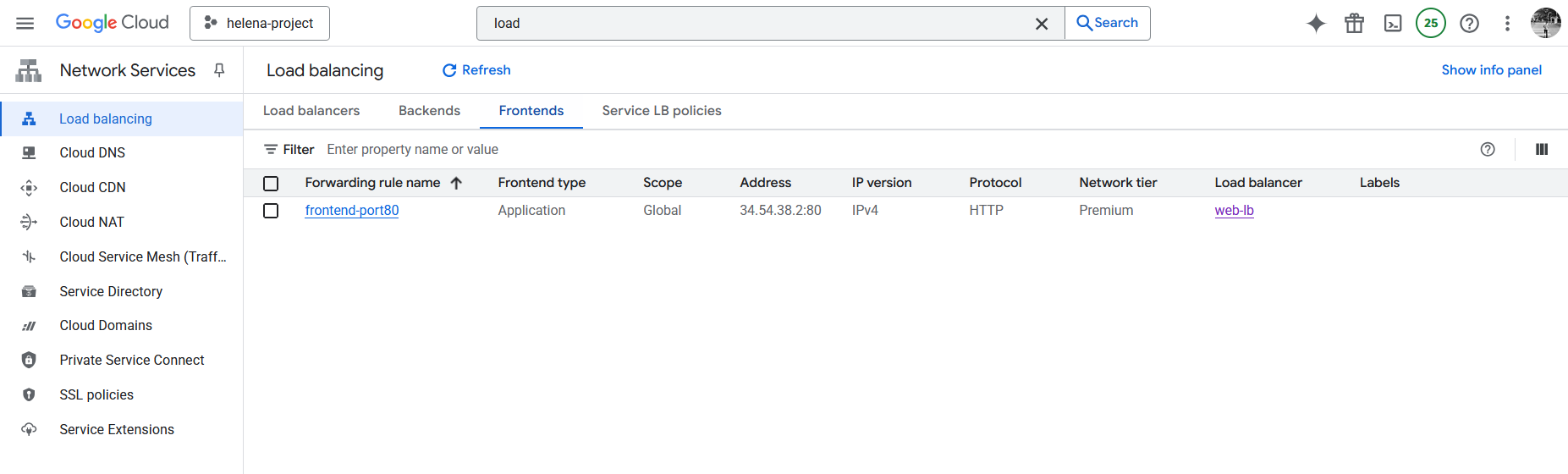
On Frontend, we can see the assigned Public IP Address
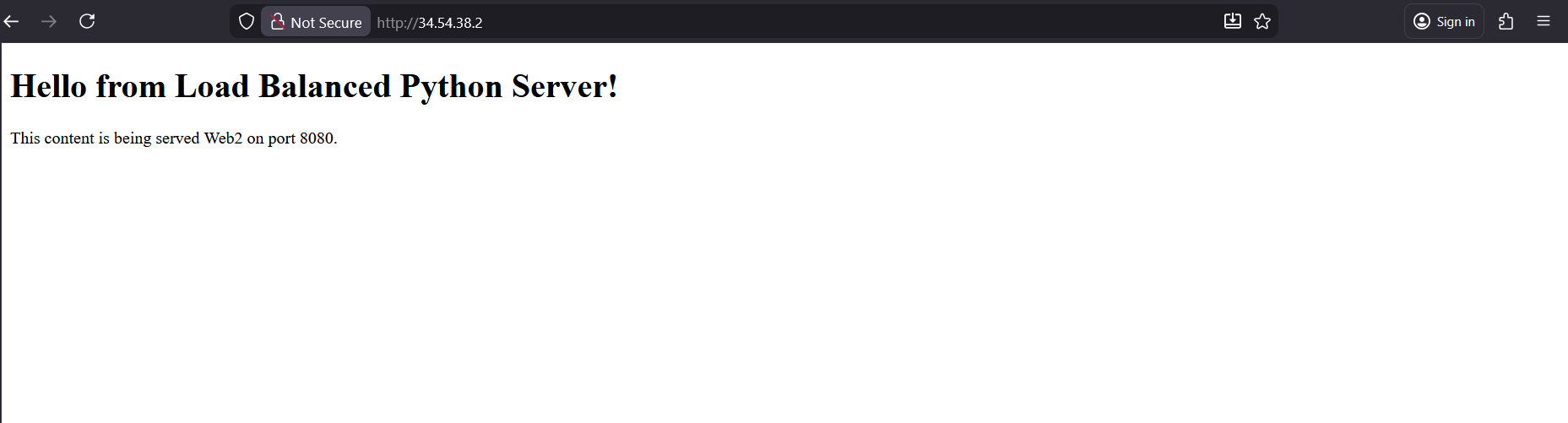
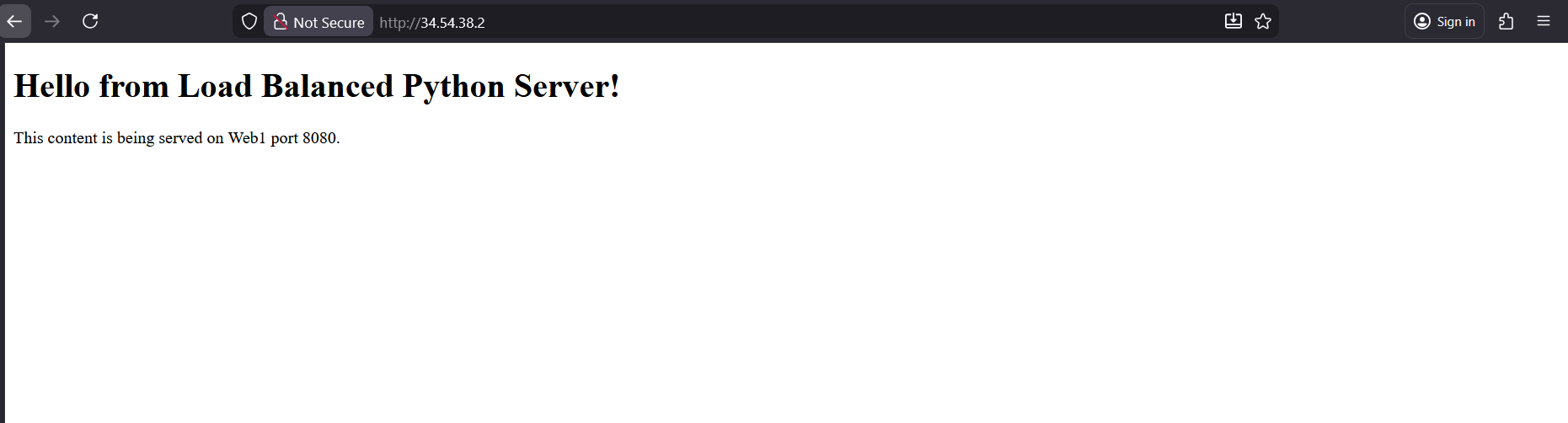
And accessing it shows us the load balanced web servers
Cloud Armor
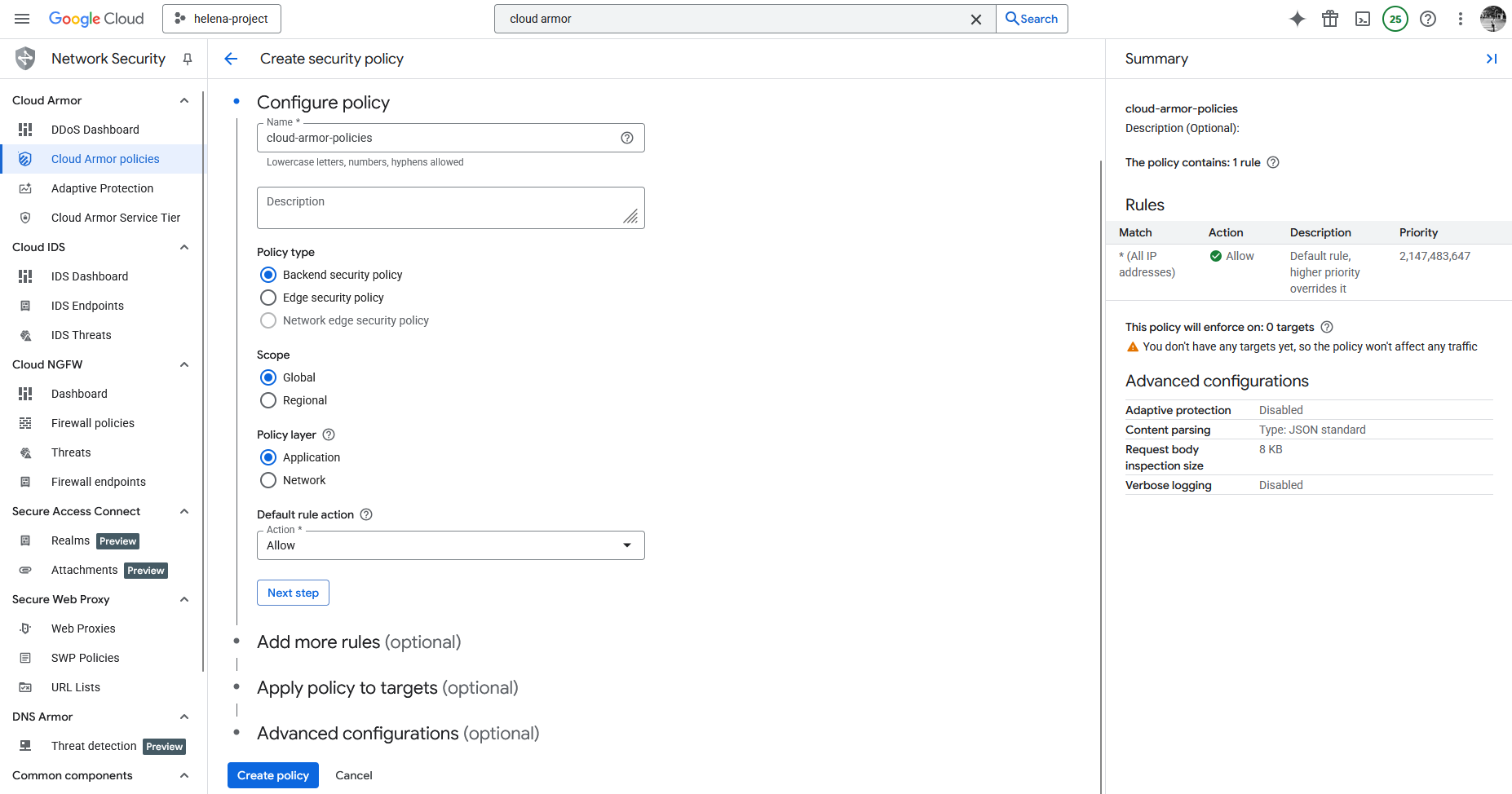
Next we will configure Cloud Armor to better protect our web servers, to do that we’ll create a new Cloud Armor Policy with Backend type at Application Layer
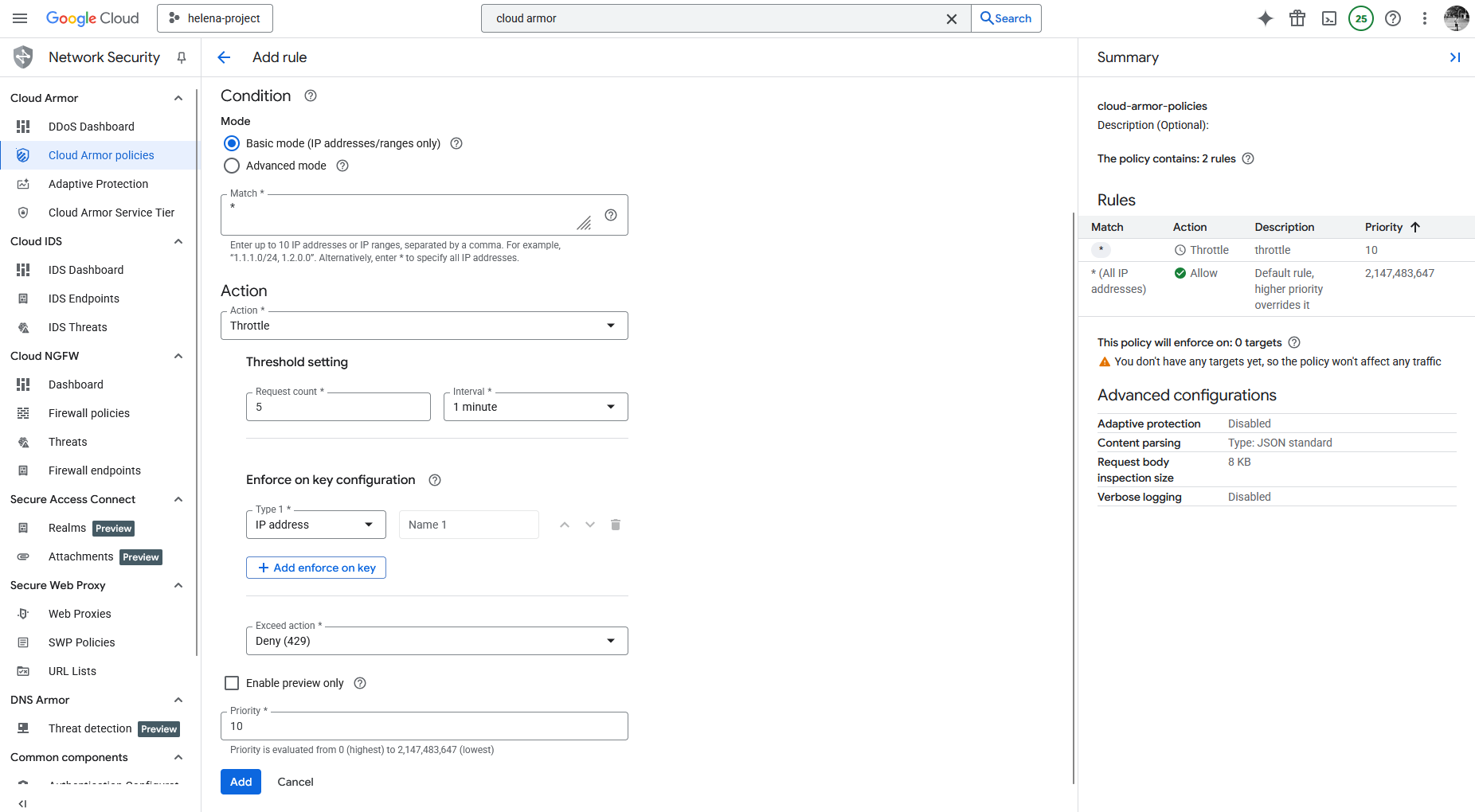
After that we add a new rule to apply throttling for IP Address that has more than 5 requests in 1 minute
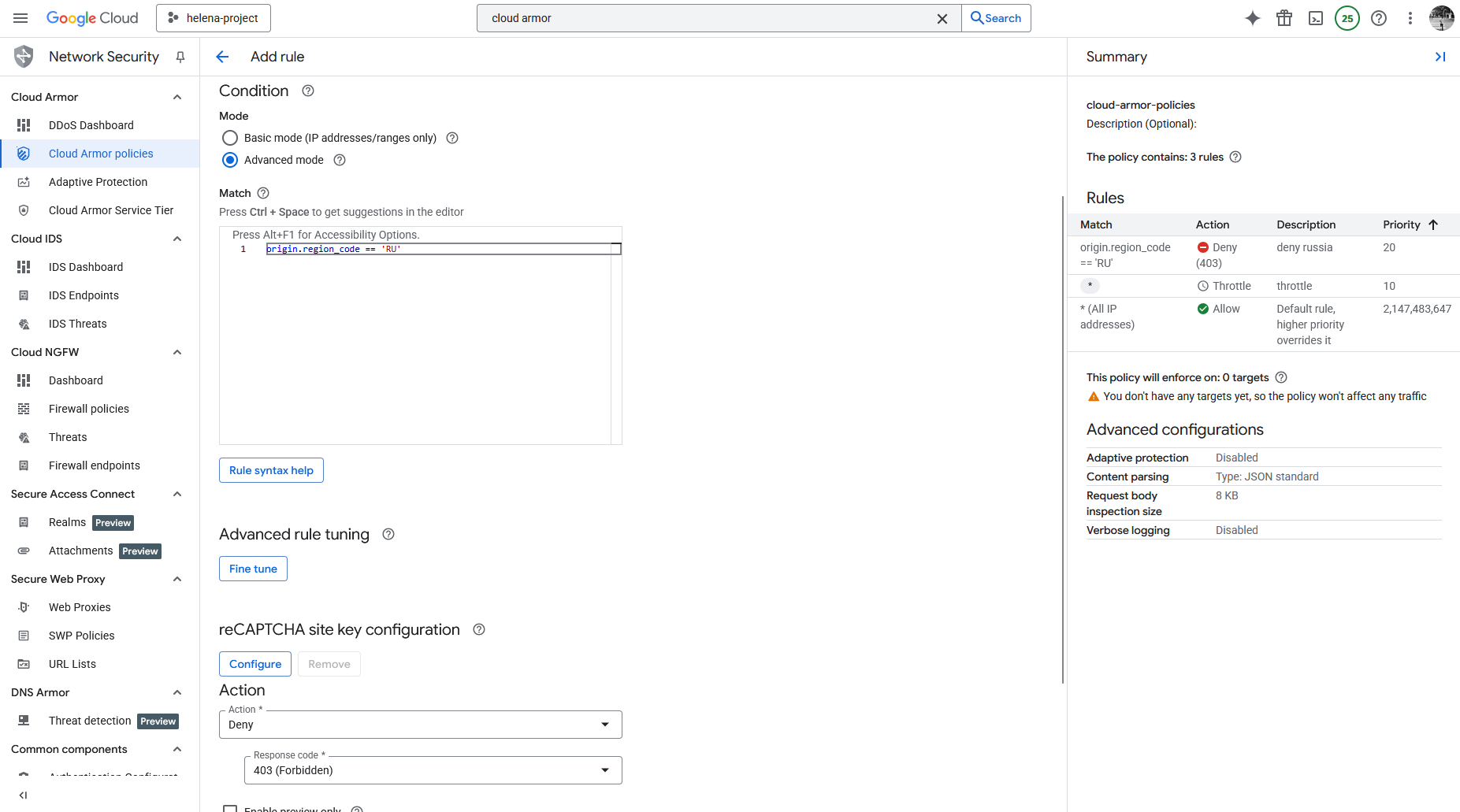
And for the second scenario we will add another rule that blocks access from IP originating from Russia
Here’s the final Policy with the configured rules
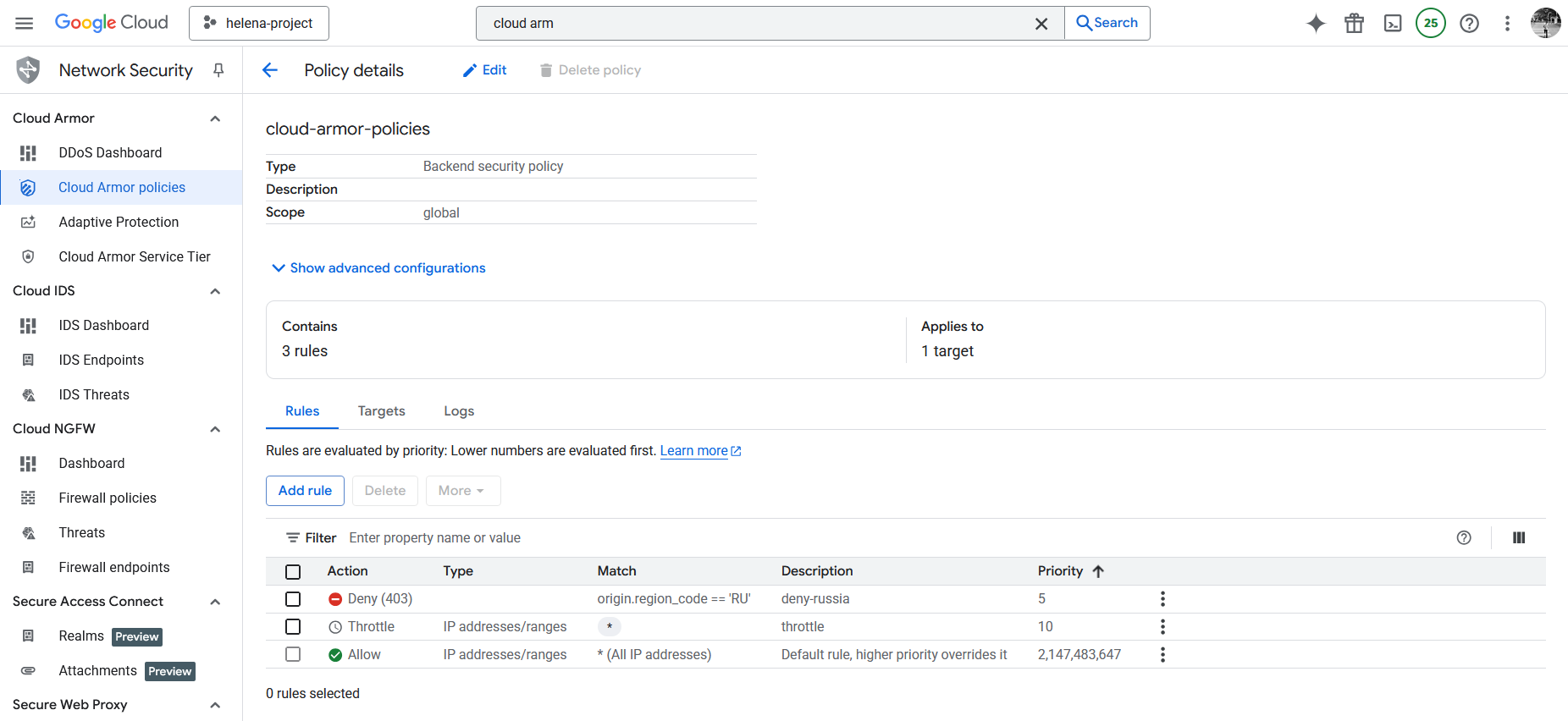
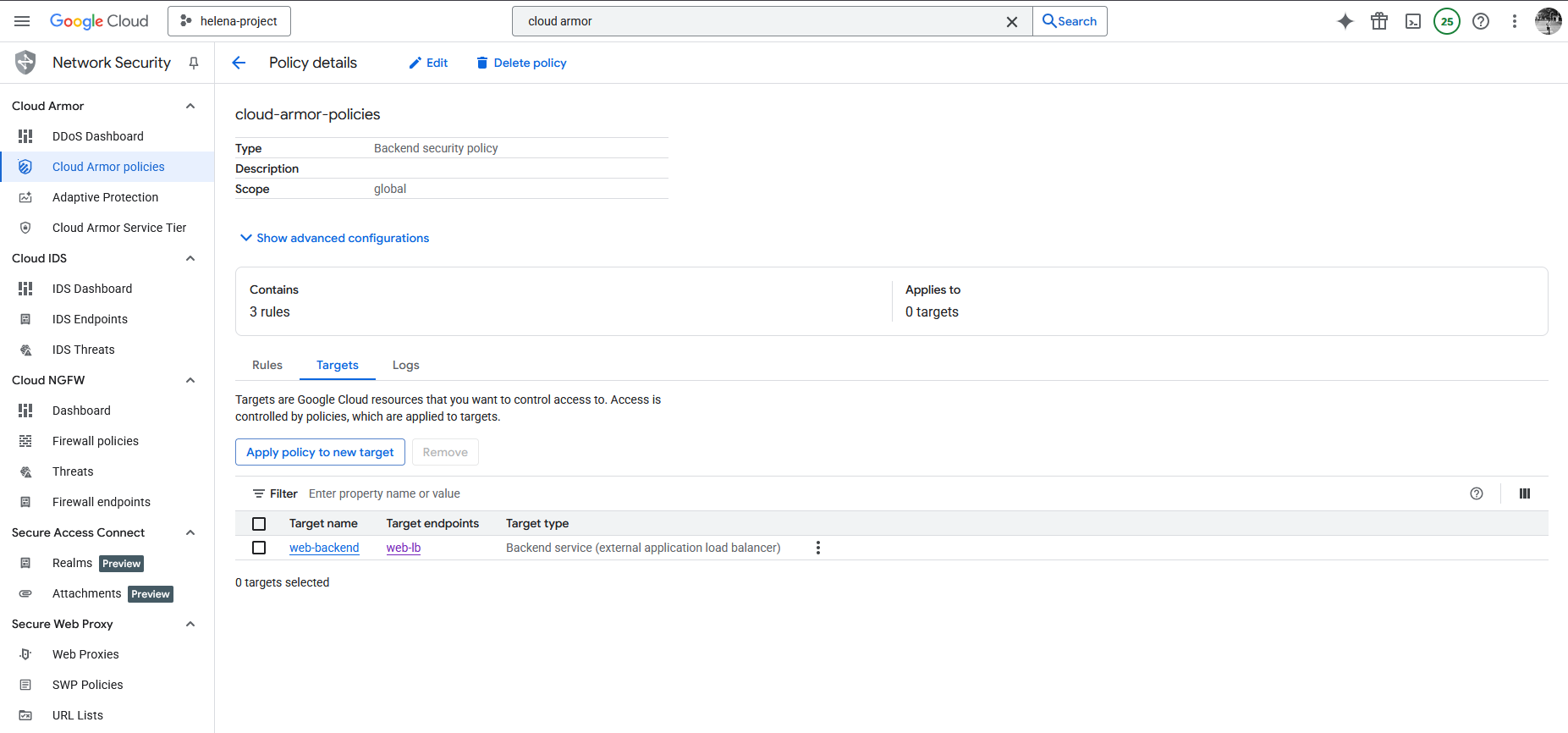
Lastly we can attach this policy into the Backend Service by setting the target
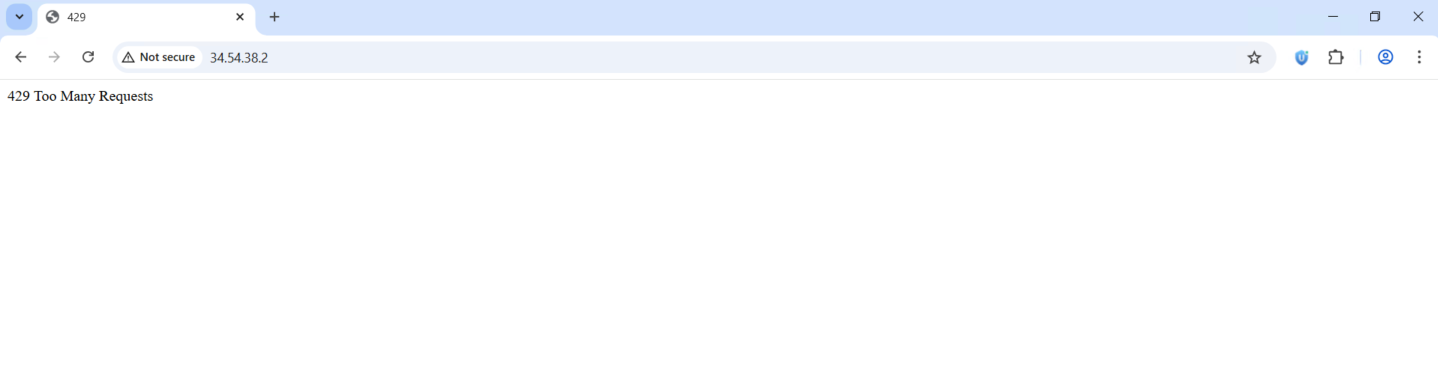
Now lets try the throttling rule, when we refresh the page 5 times we will get this error
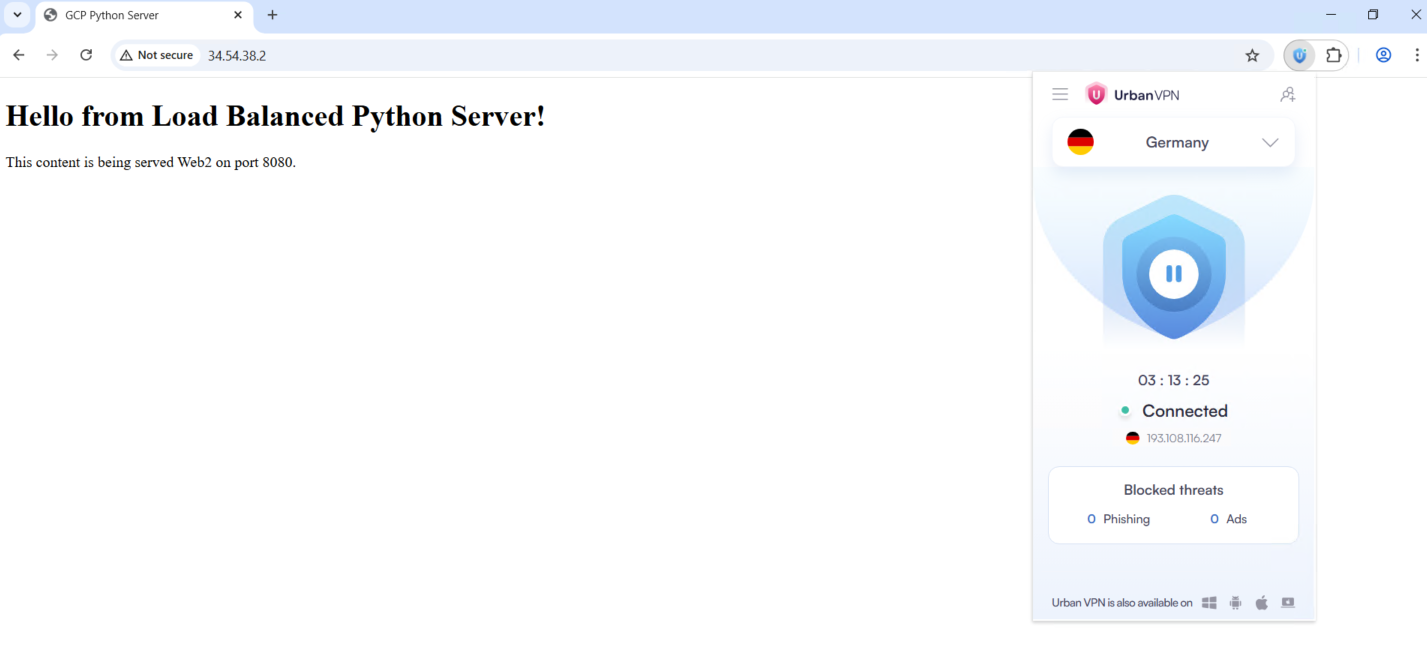
Next if we try accesing it from any other country, it should be accessible just fine
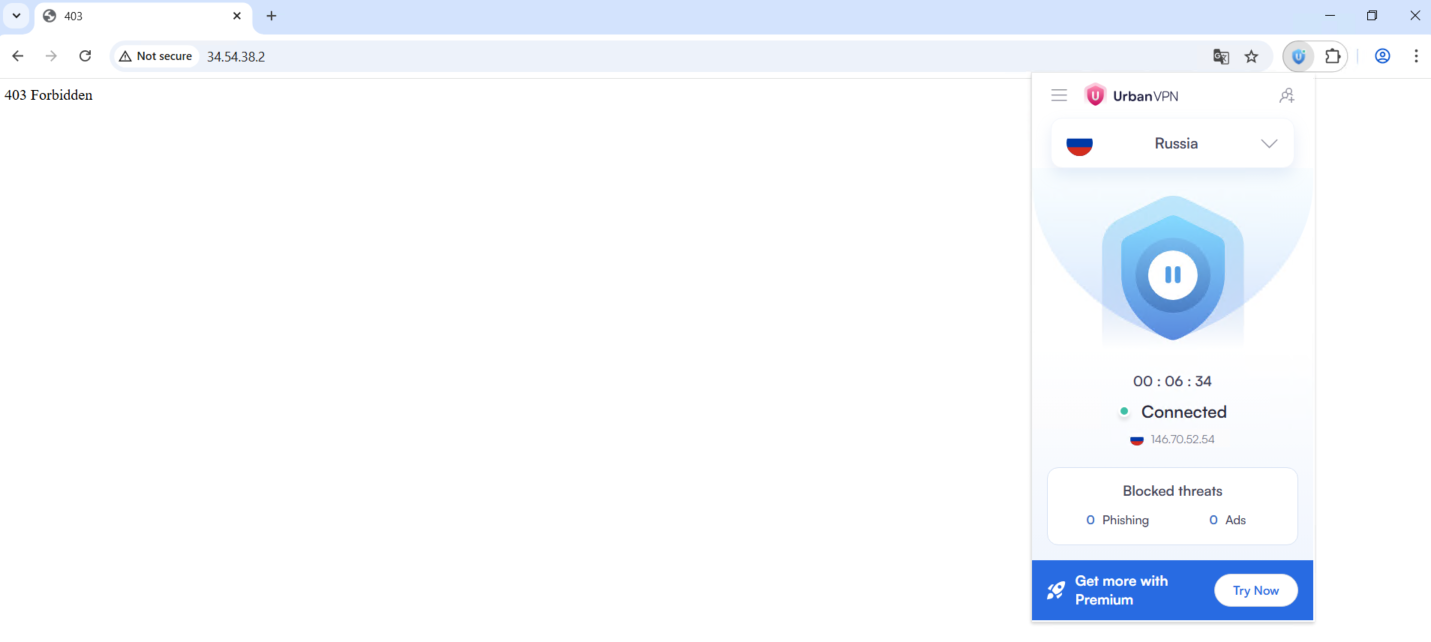
But accessing from Russia will be denied